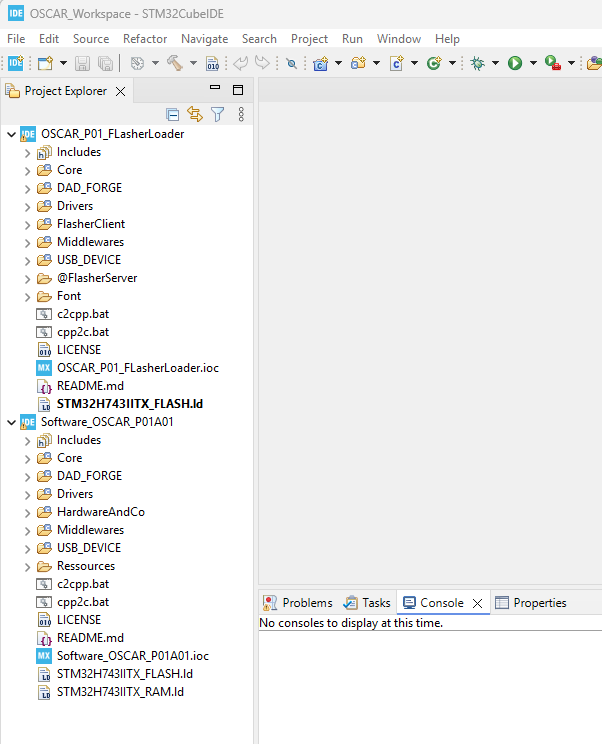
How to Create Your Workspace
This tutorial explains how to clone and set up the necessary repositories for developing audio effects within the OSCAR Workshop environment.
Note
Once you are familiar with the OSCAR Workshop environment and its development tools, you can certainly organize your workspace and repositories differently. The method described here is simply a recommended starting point.
Prerequisites
Before starting, ensure that the following tools are installed on your computer:
- Git
- STMicroelectronics STM32CubeIDE
Creating the Workspace Directory
Create a working directory for STM32CubeIDE projects, for example, named OSCAR_Workspace.
Run the following commands:
mkdir OSCAR_Workspace
cd OSCAR_Workspace
Cloning the OSCAR Effect Development Framework
Clone the repository ‘Software_OSCAR_P01A01’, which contains the OSCAR P01A01 Software effect development framework:
git clone --recurse-submodules https://github.com/DADDesign-Projects/Software_OSCAR_P01A01
This repository provides the essential framework and examples used to develop audio effects for the OSCAR P01A01 hardware platform.
Cloning the OSCAR Flasher Loader
Next, clone the OSCAR flasher/bootloader project:
git clone --recurse-submodules https://github.com/DADDesign-Projects/OSCAR_P01_FLasherLoader
This project includes:
- The flasher utility, used to transfer resource files (images, fonts, ELF executables, samples, etc.) into the external QSPI flash memory of the OSCAR P01 board.
- The bootloader, which is used by the pedal to launch the selected executable from the external QSPI flash memory upon power-up.
Opening the Workspace in STM32CubeIDE
- Launch STM32CubeIDE.
- If the IDE opens directly without prompting you to select your workspace directory,
click Other… in theFile/Switch Workspacemenu.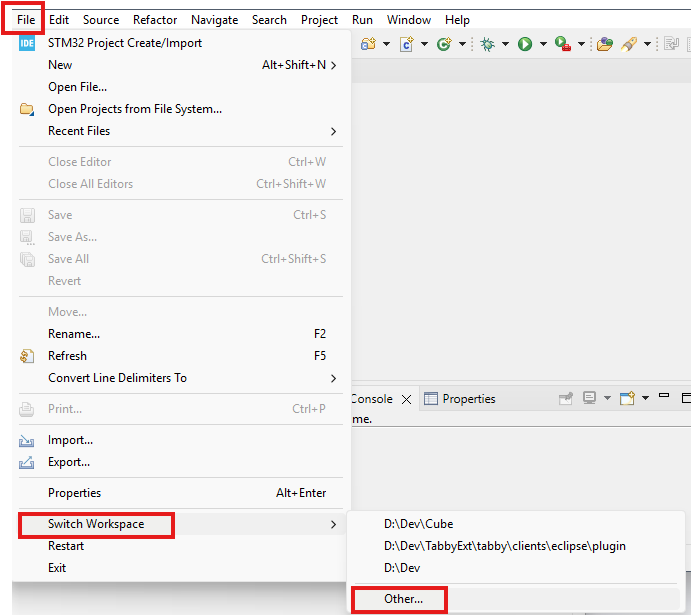
Whether opening directly or after clicking on the
File/Switch Workspacemenu, a dialog box will appear asking for your desired workspace location:- Click on Browse.
- Select the directory you just created (
OSCAR_Workspacein this tutorial).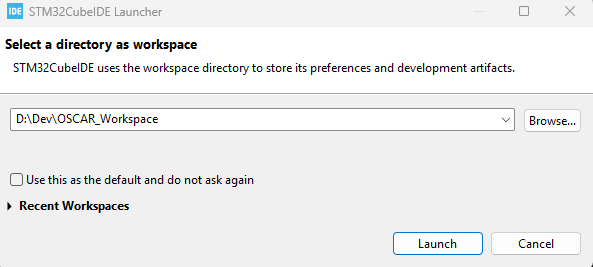
- If the IDE opens directly without prompting you to select your workspace directory,
Importing the Projects into the STM32CubeIDE Workspace
1. In the Project Explorer, click on Import Projects.
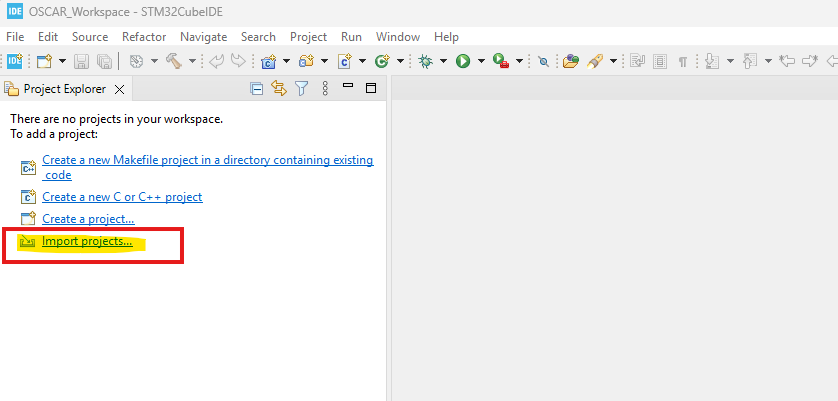
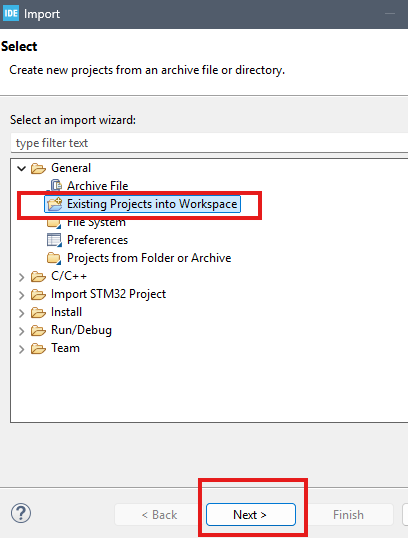
2. In the Import dialog box:
- Select General /Existing Projects into Workspace.
- Then, click the Next button.
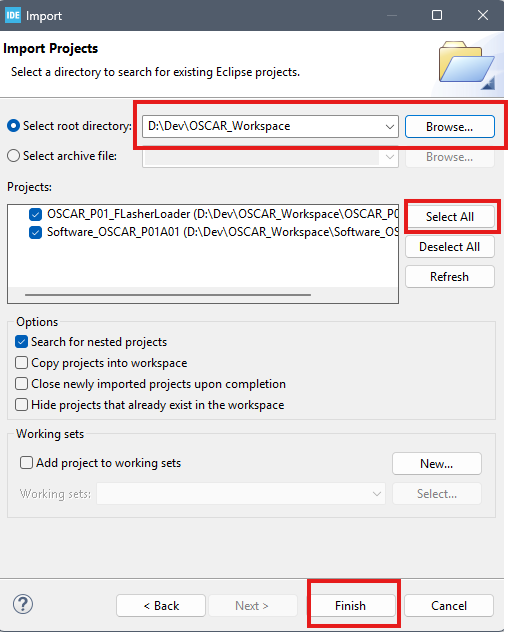
3. In the Import dialog box, select the root directory:
- Click on Browse 🔍.
- Select your workspace directory (
OSCAR_Workspacein this example). - Click on Select All ✅.
- Finally, click the Finish button.
✅ Your Workspace is now configured
You are ready to start working with OSCAR projects.
👉 See the next tutorial to compile your first effect